LinkWise

Browser extension

Install on Chrome, Edge, or Firefox, then connect your LinkWise account.

~5 min read

The extension is the fastest way to save the page you are viewing—with summary and keywords—into your LinkWise library. Currently available for Chrome, Edge, and Firefox. Safari support will be documented when the listing ships.

Install

  1. Open the Extension page.
  2. Choose Chrome, Edge, or Firefox and install from the store.
  3. Pin LinkWise to your toolbar for quick access.
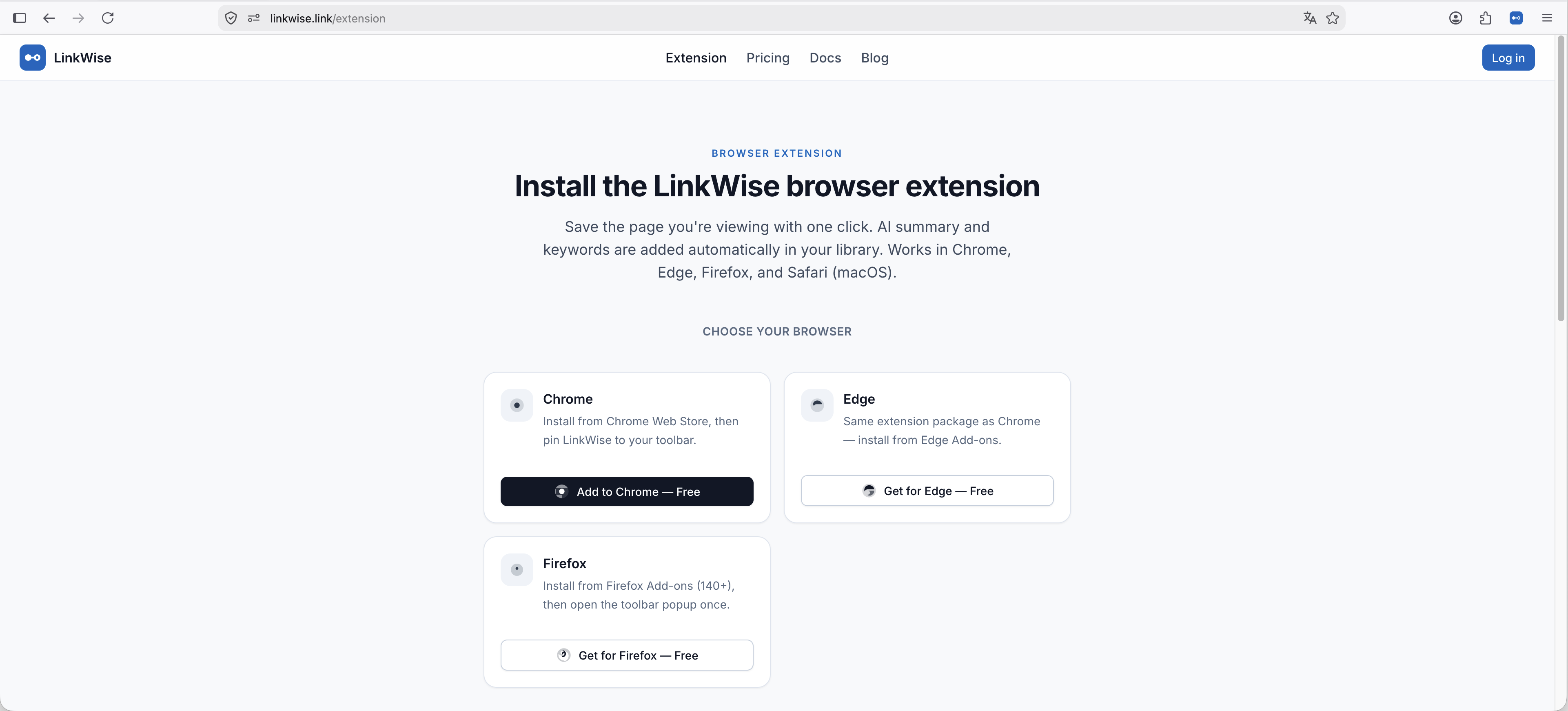
Extension install cards on /extension (Chrome / Edge / Firefox only—no Safari).

Connect your account

  1. Stay signed in on linkwise.link with the same account you use for your library.
  2. On the Extension page, use Connect extension (one-time sync).
  3. Open the toolbar popup once. In Firefox, allow site access if prompted.
  4. Confirm the popup shows the correct email before saving.
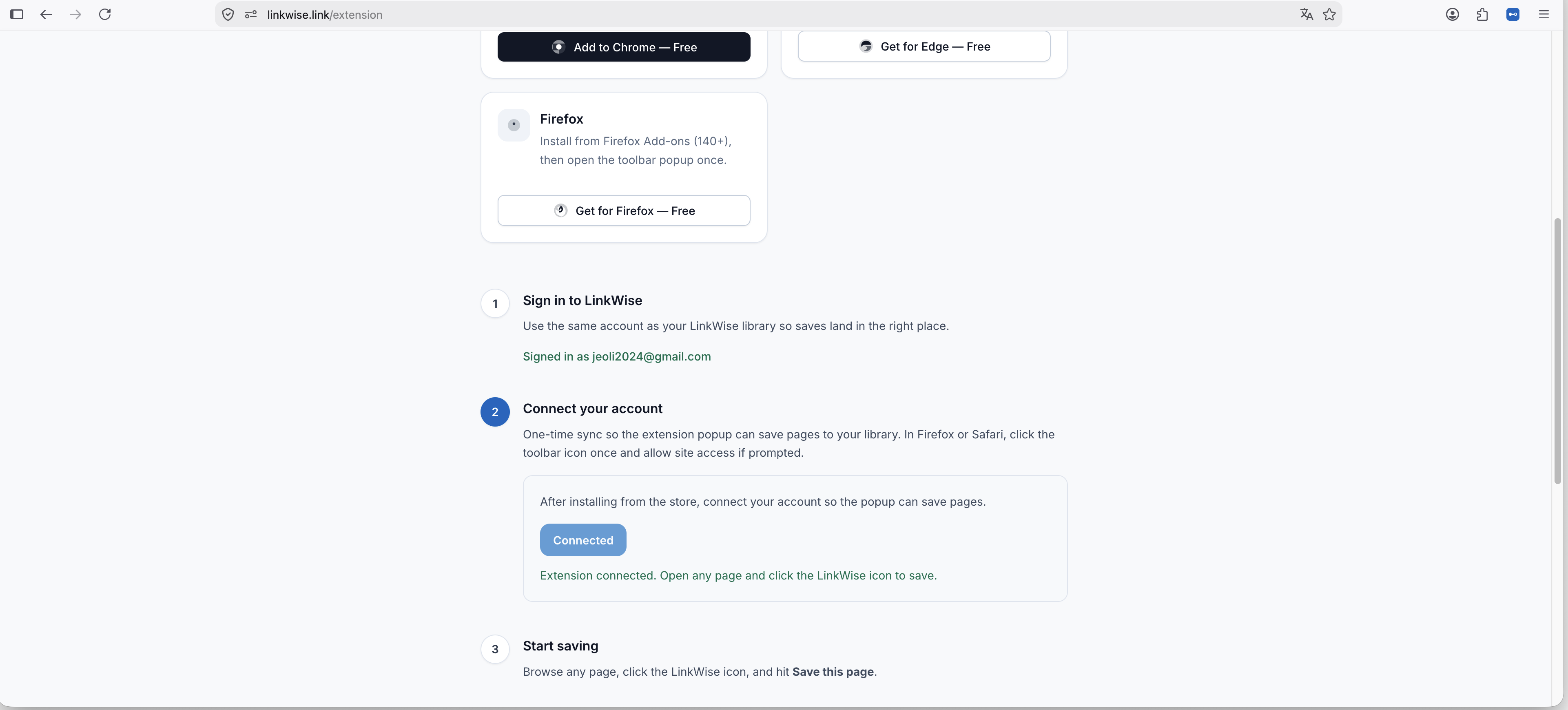
Connect extension panel on /extension after login.
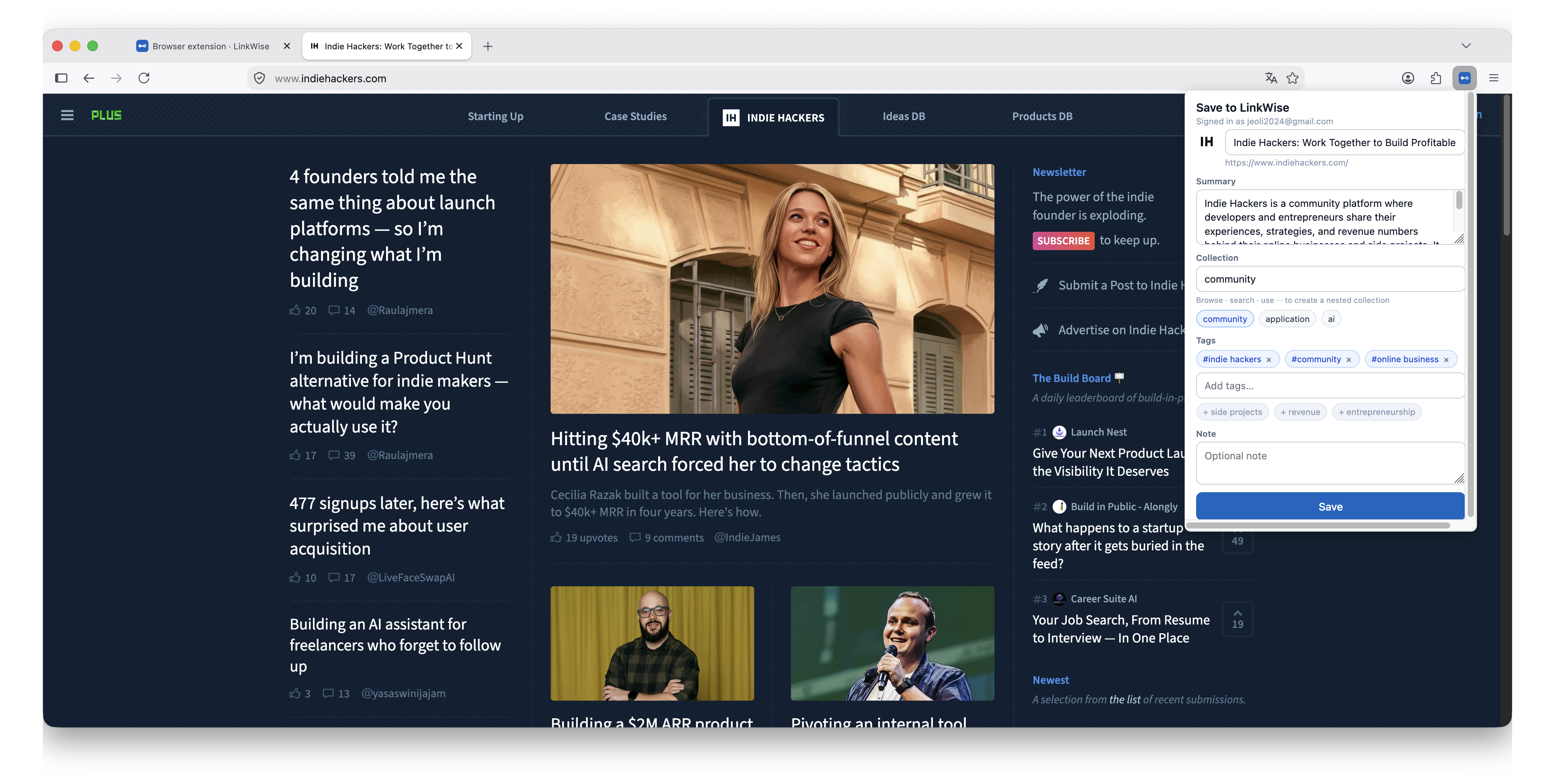
Toolbar popup showing signed-in email and Save action.

Switching website accounts

The extension caches login separately. After you switch accounts on the website, open /extension and Connect again, then check the popup email.

FAQ

I signed in with Google—site says Connected, but the popup still asks me to log in?
Update the extension to 0.1.12 or newer from the Chrome Web Store or Edge Add-ons. Then open /extension, click Connect extension again, reopen the popup, and confirm the email. Older builds often fail to sync Google sessions to the popup.
The site says Connected, but the popup still says Not connected?
First confirm you are on the latest extension version. Then open /extension and tap Connect extension again, reopen the popup, and check the email. Do the same after switching accounts. On Edge, install from Edge Add-ons only—don’t mix with the Chrome Web Store build.
How do I check my extension version?
Chrome: chrome://extensions → LinkWise → version. Edge: edge://extensions. Store auto-update can take hours to a day or two; you can also update from the store listing.
Which browsers are supported?
Chrome, Edge, and Firefox today. Safari will be documented when the listing ships.
I switched accounts on the website—why is the popup still the old email?
The extension caches login separately. After you switch accounts, reconnect on /extension and confirm the popup email before saving.